Capture / Upload Invoice
- Requisition -> Capture Invoice
-
This document outlines the process for capturing, submitting, and tracking invoices within the the system. It also explains the approval workflow, from invoice creation through to final GRN/Invoice creation in the ERP system
The below diagram further highlights the workflow a potential workflow
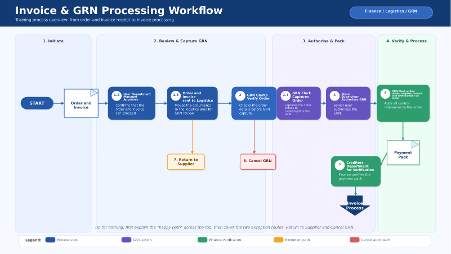
Capturing an Invoice
Step 1: Open Requisition / PO
- Log into Green-Field
- Search using:
- PO number OR
- Requisition number
Step 2: Create Invoice
Open the requisition
- Select “Create Invoice” under the options menu top right.
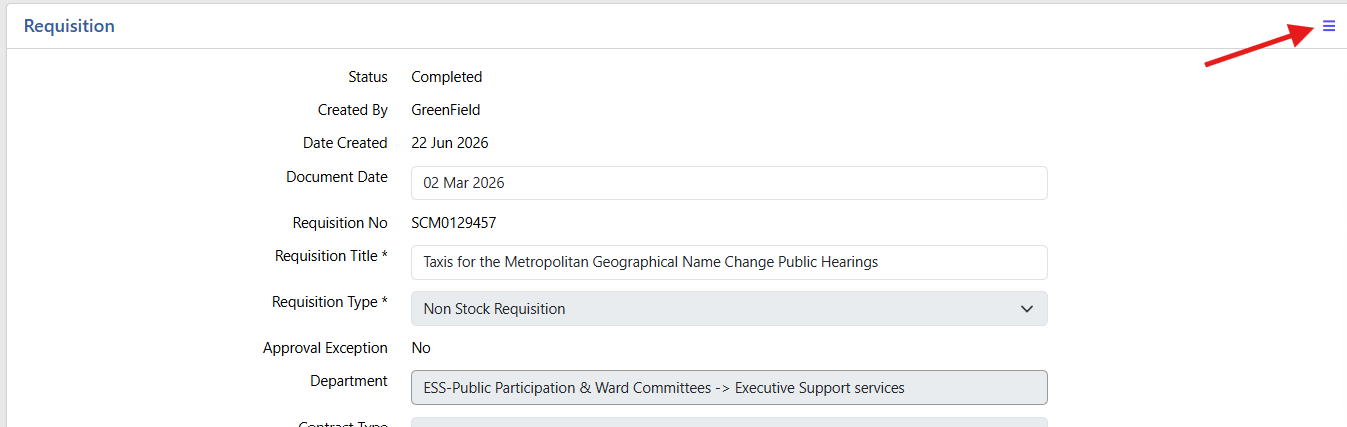
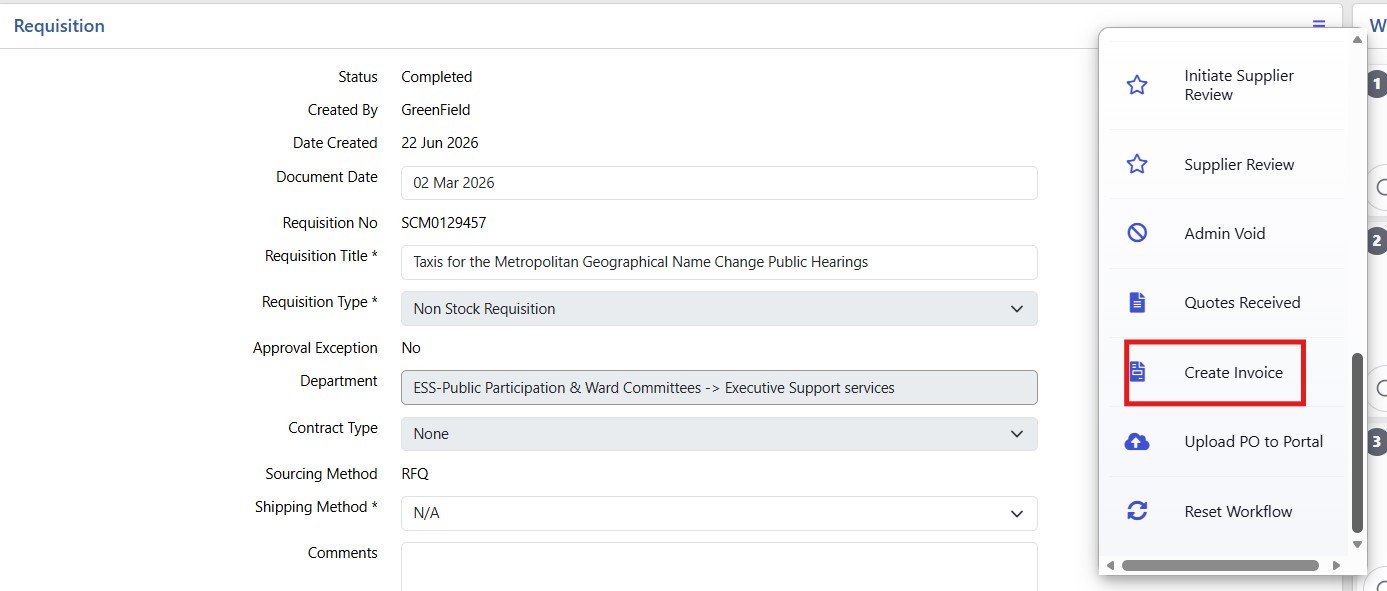
- The system will auto-populate some fields.
Step 3: Capture Invoice Details
Input value in fields.Notes on fields:
- Invoice Number (Supplier invoice number, not the ERP's number, that number has not been generated)
- Received Date (Important for tracking)
- Ensure Invoice number is unique for each supplier
Step 4: Upload Supporting Documents
Navigate to the left pane “Attachments”Attachments may vary based on your system configuration.
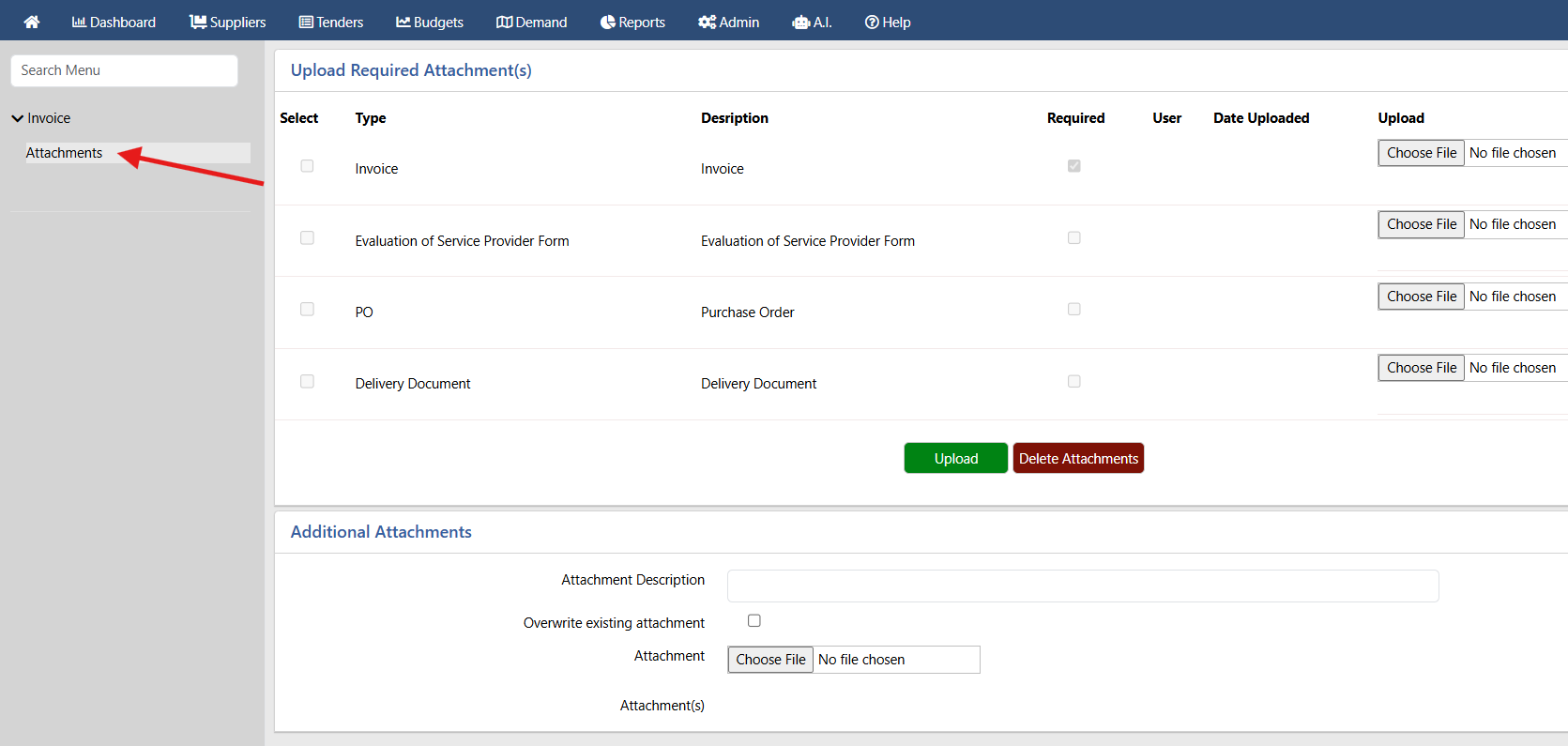
Choose file and upload.
Mandatory:
- Supplier Invoice
There might be more marked as required.
Optional (if available):
- Evaluation Form
- Delivery Note
- Purchase Order
System will not allow submission without required documents.
Step 5: Save Invoice
- Click Save.
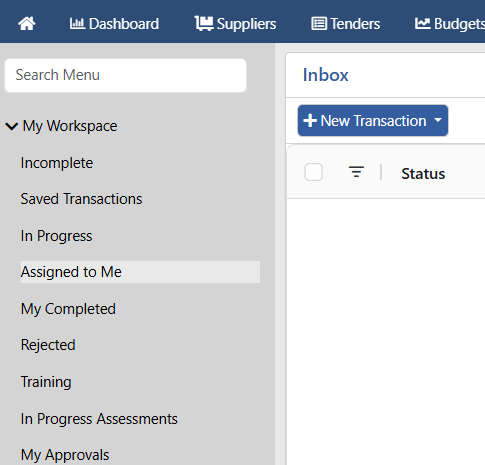
- Invoice remains in your inbox for further editing and can be found under items assigned to you on e-Procurement.
Step 6: Submit for Approval
- Click Request Approval
Invoice is routed into the workflow until final approval for processing.
- Date Created
- 2026/07/06 14:34:29
- ID
- 3216